
How to Transfer Game Saves Between Devices
A practical guide to moving game progress between computers, consoles and handheld devices without losing or overwriting saves.
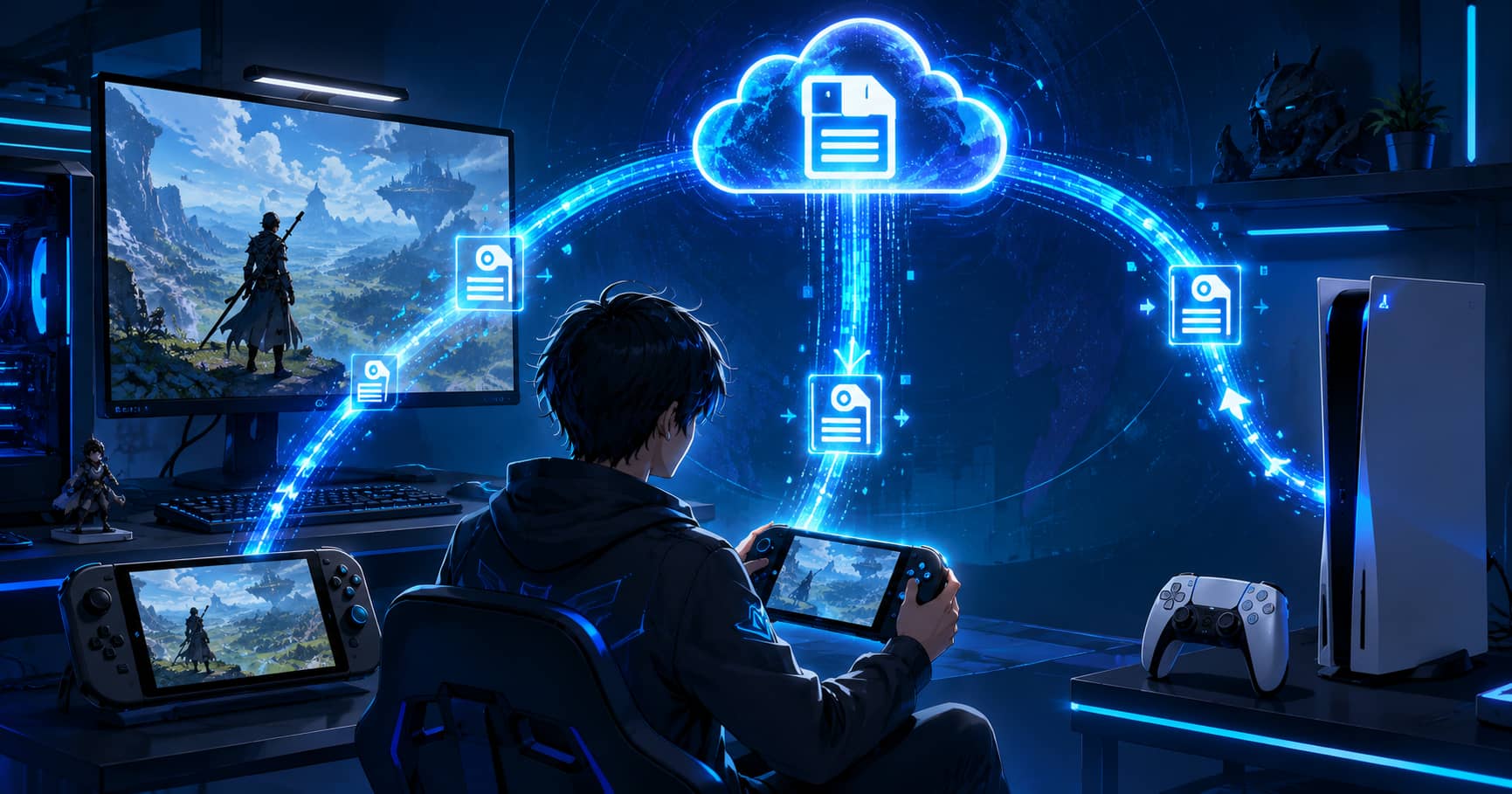
Moving progress from one device to another can be automatic, manual, account-based, or impossible. The outcome depends on the game, platform, storefront, version, region, and whether the developer built cross-save support. Cloud backup alone does not guarantee that a PlayStation save will work on PC or that a Steam save will appear on another console.
Before changing hardware, identify which kind of transfer you need and preserve the original data. Never erase or trade in the source device until the destination has loaded the correct save.
Distinguish cloud sync, cross-save, and generation transfer
Cloud sync normally moves saves within one platform ecosystem, such as between two PCs using the same storefront account. Cross-save or cross-progression is a game-specific system that links progress across different platforms. A generation transfer moves data from an older console version to a newer one, such as from a previous-generation edition to a current-generation edition.
These systems can overlap, but they are not interchangeable. A game may support cloud saves between PCs yet provide no path from PC to console. Another may support cross-progression for character data but require separate purchases of the game and downloadable content.
Back up before you begin
Create an independent copy before enabling, disabling, uploading, converting, or importing anything. Our full guide to protecting and backing up game saves explains versioned local copies and cloud-conflict precautions.
Close the game normally and let synchronization complete. Record the source device, account, game version, save timestamp, installed expansions, and mod list. If a transfer fails, this information helps identify why.
Moving between two PCs on the same storefront
For a supported Steam Cloud game, install Steam on the new PC, sign in to the same account, install the game, and wait for synchronization before launching. Valve's Steam Cloud documentation explains the feature, but each developer chooses which files to include.
If cloud support is absent, copy the complete save directory manually while the game is closed. Use the same game build where possible. Some games store account IDs, configuration files, or registry entries separately, so consult official support material for the exact title.
Do not copy the entire game installation as a substitute for finding the save. Installation files and personal progress are usually stored separately.
Moving within a console ecosystem
Use the platform's official transfer or cloud-storage process. Sign in with the same account, update both systems, and connect them to a stable network. Some consoles support direct system transfer, external storage, or cloud download, but the available method may depend on a paid membership.
Check whether the destination runs the same game edition. A backward-compatible older version and a native current-generation version may maintain separate save formats. Some games offer a one-way import inside the title; others share one save automatically.
Cross-platform transfers require developer support
Look for an official account-linking or cross-progression menu. For example, Hello Games documents No Man's Sky cross-save across supported platforms, while CD Projekt Red provides a separate account-based process for Cyberpunk 2077. These are game-specific services, not universal console features.
Read what transfers. Campaign progress may move while purchased currency, platform trophies, user-generated content, or downloadable-content licenses do not. You may need to own the game separately on every platform. Never give account credentials to an unofficial transfer service.
Check downloadable content and region compatibility
A save created with an expansion may refuse to load if the destination lacks that expansion. Install equivalent downloadable content before opening the transferred save. Editions with different regional identifiers can also be incompatible even when the title appears identical.
Physical and digital copies usually share saves within the same region and platform, but exceptions exist. Confirm with the publisher rather than relying on a general rule.
Mods make PC transfers more fragile
Copy the mod list, load order, script extender version, and configuration alongside the save. Install the same versions on the destination before loading. A missing cosmetic mod may be harmless, while a missing world, quest, or item mod can permanently alter the save.
Keep the untouched backup from before migration. If the destination reports missing content, stop and restore the correct environment instead of repeatedly saving over the imported file.
Resolve conflicts without guessing
If the platform asks whether to keep a local or cloud save, do not choose based only on “newer.” Compare playtime, character location, save name, and the device used for the latest session. Copy both versions first when possible.
After selecting a version, open the game offline if the platform allows it, verify the progress, close normally, then reconnect and synchronize. This reduces the chance of immediately replacing the correct copy with the wrong one.
Verify the transfer completely
Load more than the title screen. Check the correct character, inventory, quest progress, settings, achievements, and downloadable content. Make a new manual save on the destination, close the game, restart the device, and load that new save again.
Only after this test should you reset or dispose of the original hardware. A successful transfer is not the moment the file appears; it is the moment the destination repeatedly loads and saves the expected progress without warnings.
GameAtlas HQ
Read more practical gaming coverage across our six editorial categories.