
How to Fix Common Controller Connection Problems
Troubleshoot USB, Bluetooth, battery, firmware and in-game input problems affecting gaming controllers on PCs and consoles.
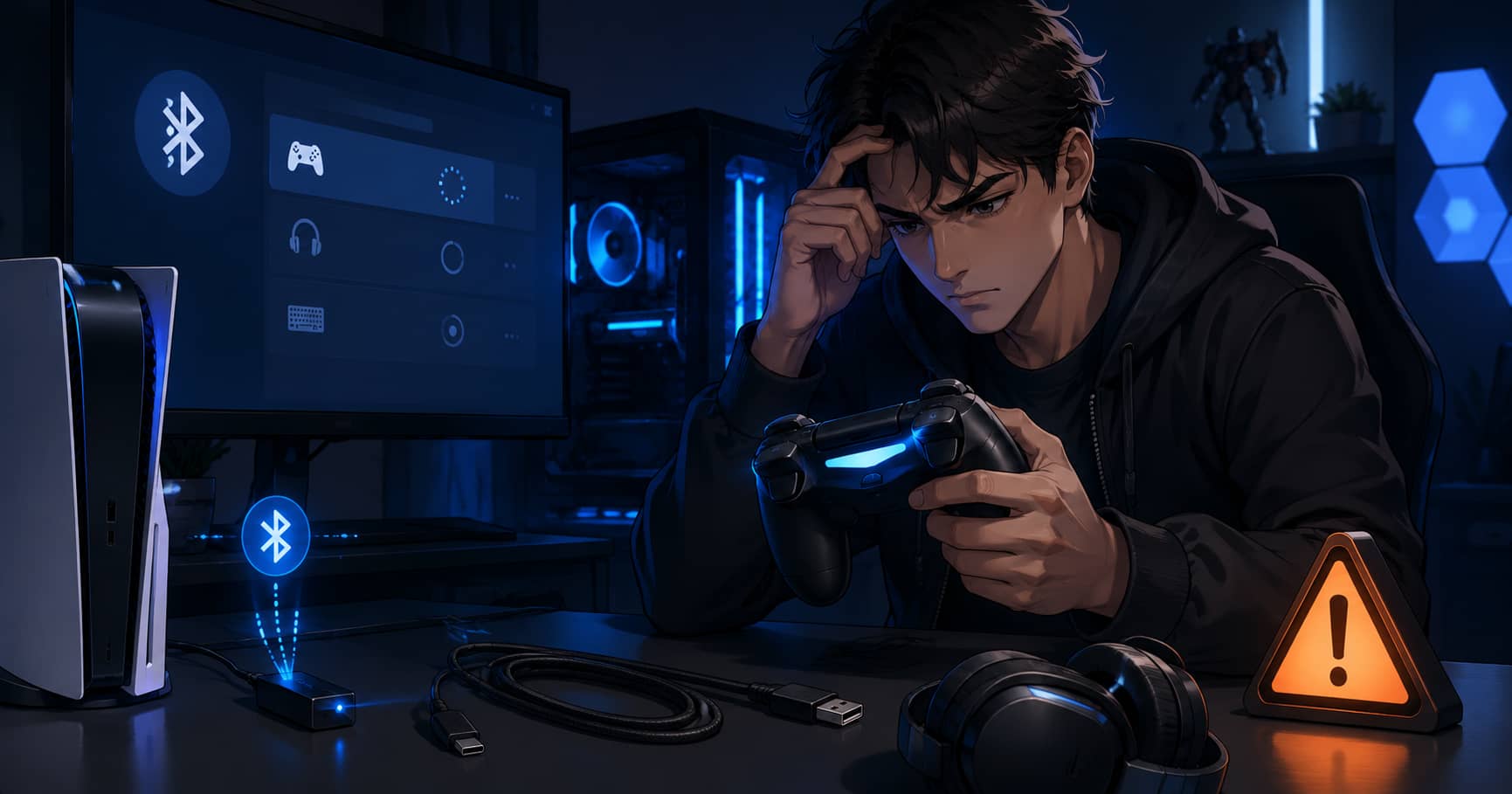
A controller that will not connect can look like a hardware failure when the real cause is a flat battery, charge-only cable, stale Bluetooth pairing, outdated firmware, or a game that is listening to the wrong input device. Troubleshooting is faster when you separate power, connection, operating-system detection, and in-game support instead of repeatedly pressing the pair button.
The steps below apply broadly to Xbox, PlayStation, Switch-compatible, and third-party controllers. Use the manufacturer's instructions for model-specific reset procedures.
First identify where the connection fails
Connect the controller with a known data-capable USB cable. Some inexpensive cables deliver power but do not transmit data. If the controller works over USB, its buttons and main electronics are probably functional, and the problem is more likely to involve wireless pairing, battery condition, interference, or the wireless adapter.
If the computer or console recognizes the controller but the game does not, the connection itself is working. Test another game or the platform's controller settings. On PC, close controller-mapping tools temporarily because two programs translating the same input can create duplicate presses or prevent detection.
Eliminate simple power and cable faults
Charge the controller for a reasonable period using a supported cable and power source. Replace disposable batteries with a fresh matched pair, observing the correct orientation. A controller may light up yet disconnect under vibration if the batteries are weak or the contacts are dirty.
Try another USB port directly on the machine rather than through an unpowered hub. Inspect the cable and connector for looseness. If the controller works only when the plug is held at an angle, stop forcing it; the cable or port may be damaged.
Remove the old pairing and start cleanly
Bluetooth devices can retain an unusable pairing record after an operating-system update or after the controller has been connected to another device. Remove or forget the controller in Bluetooth settings, restart the host device, place the controller in pairing mode, and pair it again.
Remember that many controllers reconnect to the most recent host. A controller previously used with a phone, tablet, handheld PC, or another console may be trying to return there. Disable Bluetooth on nearby devices temporarily while testing.
Microsoft provides model-specific steps for setting up and troubleshooting an Xbox Wireless Controller over Bluetooth. Sony likewise documents how to pair and reset supported PlayStation controllers. For a DualSense controller that remains unresponsive, Sony's official DualSense troubleshooting guide explains the recessed reset-button procedure.
Update controller and system firmware
Controller firmware can affect wireless reliability, headset support, battery reporting, and compatibility. Update through the official console menu or manufacturer application. Xbox controllers can be updated on console, by USB, or through the Xbox Accessories application on Windows. Do not disconnect the controller during the update.
Also install current operating-system, console, Bluetooth, chipset, and wireless-adapter updates from trusted sources. On a laptop or prebuilt PC, the computer manufacturer's support page may provide a more suitable Bluetooth driver than a generic download.
Check wireless interference and distance
Bluetooth and proprietary 2.4 GHz connections share crowded radio space with Wi-Fi, wireless headsets, keyboards, and other devices. Move closer to the receiver, remove large metal obstructions, and avoid placing a USB wireless adapter directly beside a busy USB 3 storage device. A short extension cable can move an adapter into a clearer position.
If disconnects occur only when several wireless accessories are active, test them one at a time. Change the router's Wi-Fi channel or use 5 GHz or 6 GHz Wi-Fi where appropriate, but do not alter network settings blindly when a simple relocation solves the issue.
Confirm the game supports the controller
PC games vary in how they handle DirectInput, XInput, Steam Input, and platform-specific features. A controller may work in the operating system but not be supported natively by an older game. Steam Input can translate many controllers, but a game with its own controller layer may behave better when Steam Input is disabled for that title. Test one configuration at a time.
Disconnect extra gamepads, steering wheels, flight sticks, virtual controllers, and remapping software during diagnosis. Some games assign player one to the first device detected. After the main controller works, reconnect other devices individually.
Reset only after basic checks
A hardware reset can clear a controller state, but it should not be your first action. Save custom profiles if the device supports them, read the official instructions, and understand whether the reset affects pairings or calibration. Never insert a tool into an unidentified hole; confirm the model's reset-button location.
Once the controller reconnects, open the game's options and confirm prompts, sensitivity, vibration, and button layout. The earlier guide to settings worth changing before a new game covers a useful control checklist.
When replacement or repair is justified
Test the controller on a second compatible device and test a known-working controller on the original machine. If one controller fails over both USB and wireless on multiple hosts, the fault is probably in the controller. If several controllers fail only on one machine, investigate that machine's ports, adapter, drivers, or system software.
Use the manufacturer's warranty or repair channel when the device has charging faults, a damaged port, swelling battery, repeated power loss, or failed firmware recovery. A structured test gives support staff useful evidence and prevents replacing a controller that was never the real problem.
GameAtlas HQ
Read more practical gaming coverage across our six editorial categories.